VirtualAcorn Technical support:
Running VirtualRPC on Windows Vista
Which type of CD do you have?
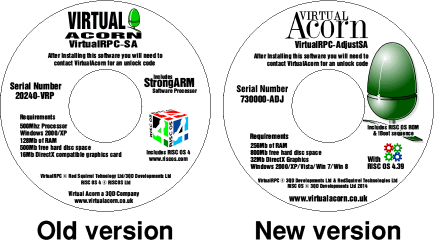
In 2014 we made a number of changes to VirtualRPC, these changes are to improve compatibility with future versions of Windows. The 'New' updated versions of VirtualRPC are supplied on CDs with a white background.
Earlier versions of VirtualRPC are supplied on CDs with a silver background.
The image below shows the general design and layout of an old and a new CD. Please note that different products will have
slightly different names and graphics, it's the overall design and layout that you should compare, not the individual elements:
'New' CDs (2014 onwards)
If you have one of the new CDs there are no changes that need to be made to Windows before installing and running VirtualRPC.
'Old' CDs (2001 to early 2014)
The copy of VirtualRPC on the earlier CDs will still run on Windows Vista but you will need to make the following change before using VirtualRPC.
Disable User Account Control
User Account Control (UAC) must be disabled in Windows Vista before unlocking and running a VirtualRPC. Without User Account Control being disabled a number of rather nasty things can happen. You might find that changes made to the RISC OS !Boot system will vanish, documents that have been altered lose their changes. You may even find that Windows "interrupts" VirtualRPC in the middle of your work.
Luckily disabling User Account Control is very easy.
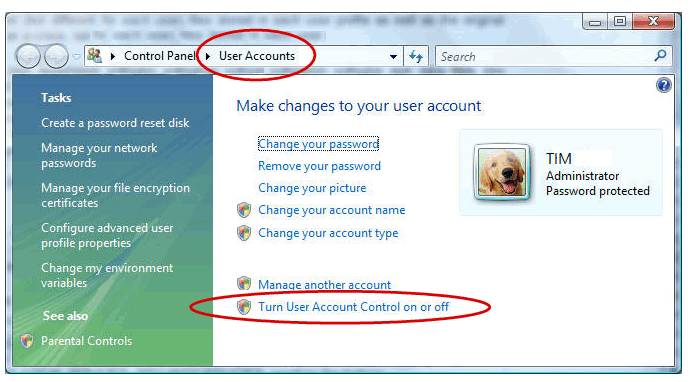
Firstly open the Windows Control Panel. Top right of the Control Panel window is the Search box. Below this is the View byoption for altering how the Control Panel is displayed. Click the little arrow and choose Large icons. All of the control panel options will now be displayed. Click on User Accounts and then click on Turn User Account Control on or off.
You will now be taken to the User Account Control option. Make sure that the "Use User Account Control (UAC) to help protect your computer" tick box is not ticked. If you have had to untick the box click on OK, Windows will then may ask if you are sure you want to make the change. Confirm that you do and finally you should be prompted to shutdown and re-start the PC. You must perform this restart if you have changed the User Account Control tick box.
Once the PC has re-started you can then unlock and use your VirtualRPC. You should keep User Account Control disabled from this point onwards.